What is my Team sidebar, and what can I find there?
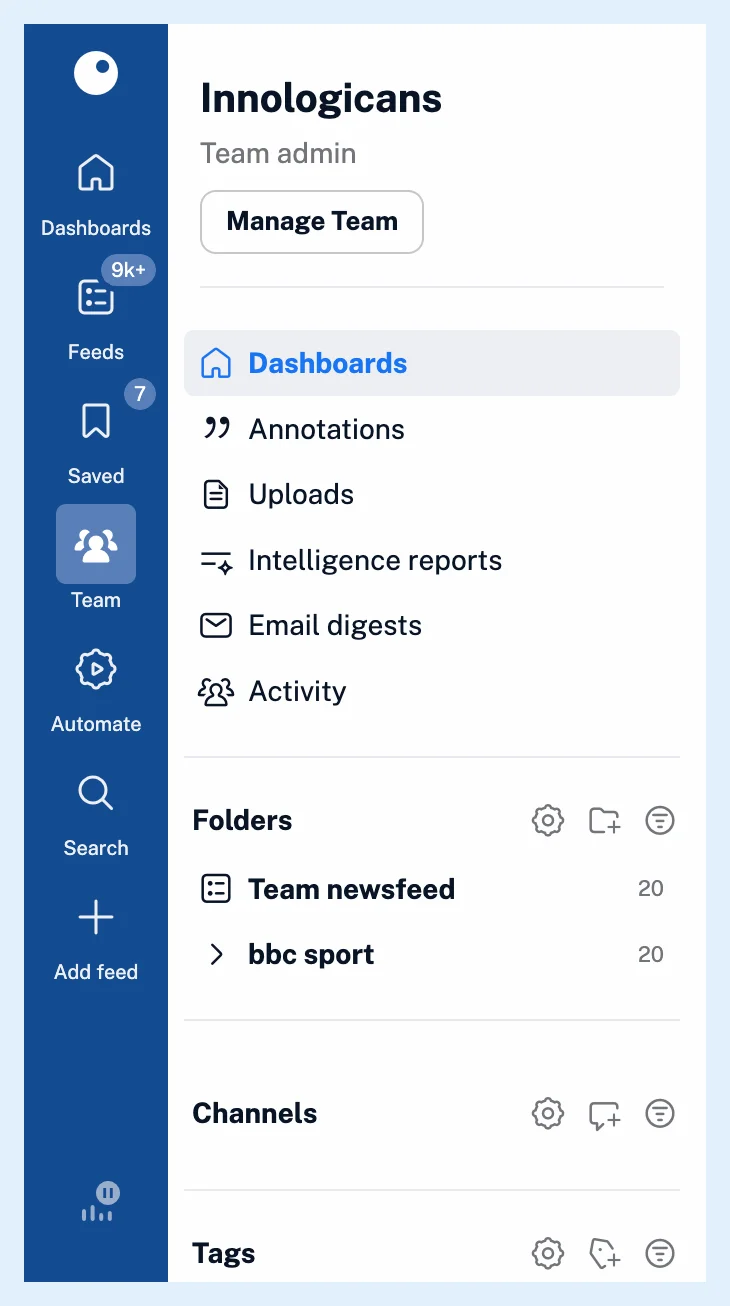
The Team sidebar opens when you click Team in the tab bar. It shows the Team's name and your role, a Manage Team button, the Team's pages and three sections: the Team folders you follow, your channels and the Team tags.
The header
Under the Team name you read your role, Team admin or Team member. Manage Team opens the list of the Team's settings sections in the sidebar: Organization, Billing, Members, SSO, Intelligence settings, Content, Filters, Spotlights and Automated reports. Where can I see my Team members and settings? walks through them.
The Team pages
Dashboards opens the Team dashboards, which every member sees. What is a Team dashboard? explains them. The Annotations, Uploads, Email digests and Activity pages follow, and Where can I see what my Team is doing? covers the Activity page. Intelligence reports is listed only when your Team has Intelligence reports.
The three sections
Folders lists the Team folders you follow. Once you follow one, Team newsfeed appears above them with all the articles of your Team folders together. Your own Newsfeed under Feeds leaves out feeds you follow only through a Team folder, so Team newsfeed is where you read them. What are Team folders? explains following.
Channels lists the channels you're a member of. Tags lists the Team tags, and every member can add one with New Team tag. Each section has a peek button that collapses it.
Admins also see a gear by each heading, which opens the matching tab of Manage Team > Content, and the Create Team folder and Create Team channel icons.
When the Team plan has ended, the Team sidebar stays visible but dimmed, and the Manage Team list isn't shown.
Plans
The Team sidebar is part of Teams on the Team and Team Intelligence plans, and Intelligence reports come with Team Intelligence plans or the Reports add-on.
Can't find an answer? Contact support