What happens after I upload a file to my Team?
Inoreader converts the file into an article, titled with the document's first main heading or, when there is none, the file name, and lists it under Uploads in the Team sidebar for every member. It also appears in your own Saved > Uploads. Members can open, search and annotate it, and only you can take it out of the Team.
The converted article
The article keeps the document's text with its headings, lists, tables and pictures. PDFs are read with text recognition, so scanned pages work too. Inoreader keeps the converted article and deletes the original file. What happens after I upload a file? describes the conversion in detail.
Where it shows
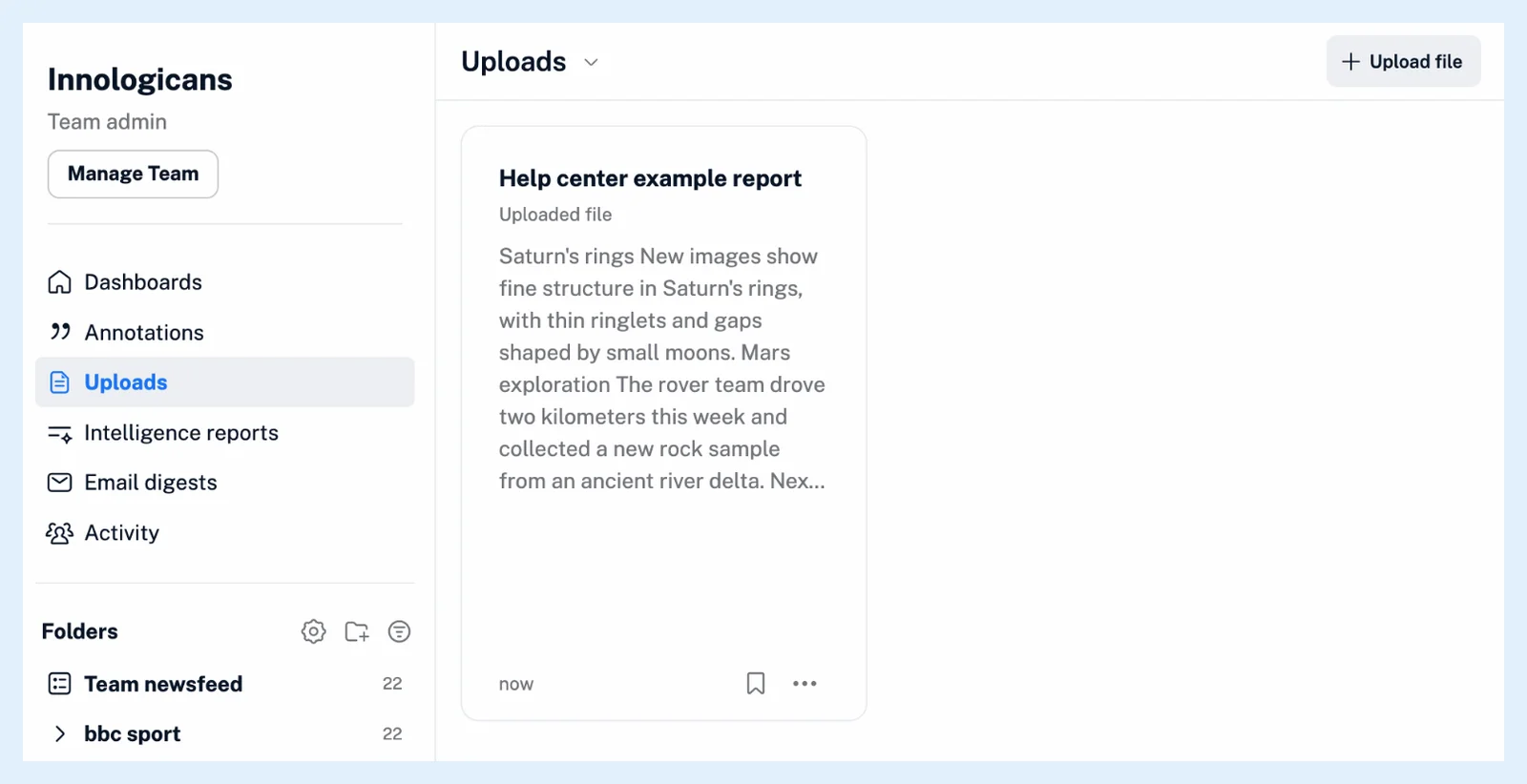
The article is listed in Team > Uploads, newest first, for every member of the Team, and in your own Saved > Uploads. It is indexed for search, and the header search in Team > Uploads searches the Team's documents. A Team dashboard can show the latest uploads with the Uploads widget. No notification is sent and nothing is added to the Team's Activity. Rules with the trigger New upload run for you as the uploader. Where can I find Team uploads? shows the list.
What members can do
Any member can open the article, search it and highlight passages or add notes, kept to themselves or shared with the Team, as Can I keep notes private? explains.
Remove your upload from the Team
- In Team > Uploads, open the More menu (⋯) on your upload.
- Choose Delete article from Team and confirm.
Inoreader shows "Article removed from Team uploads", and the article stays in your own Saved > Uploads. On an upload someone else made, the entry is greyed out with the note "You can only delete files that you uploaded."
Delete article (the trash icon) on your own upload removes it everywhere, the Team included, together with your tags and annotations on it.
Plans
Team file uploads come with the Team and Team Intelligence plans as part of Teams.
Can't find an answer? Contact support