Save time with automations

Once you’ve built your content library in Inoreader and set up feeds that bring the right articles straight to you, the next step is saving time on everything that happens after the content arrives.
With Inoreader Pro, you can automate many parts of your content workflows using advanced tools such as rules, filters, notifications, and bulk actions. Instead of manually organizing, tagging, or cleaning up your feeds, you can let Inoreader handle repetitive tasks, so you can focus on reading, analyzing, or acting on the information that matters.
Rules
Rules are a core feature for automation in Inoreader. You’ll find them under the Automate tab, where all automation tools live.
Rules execute actions automatically based on article properties. They can tag articles, save them for later, send notifications, export content to external services, and more – all without any manual input once they’re set up.
To get started, click Create rule. You’ll be prompted to name your rule and define when it should trigger.
Triggers
A rule can be triggered when:
- There is a new article in your account, a specific feed, or a folder
- A new article is assigned a specific tag
- There is a new article in your Read later list
- A new web page is saved
- A new file is uploaded
- A new Intelligence report is generated
- Another rule is matched
Conditions
After selecting a trigger, add conditions to narrow down exactly which articles the rule should apply to. Conditions can be based on:
- Title and/or content
- Author
- URL
- Attachments, images, or videos
- Language
- RSS categories
You can combine multiple conditions using AND / OR operators to create very precise logic.
Actions
Once your conditions are set, choose what Inoreader should do when they’re met. Available actions include:
- Assigning tags
- Saving articles to Read later
- Sending articles by email
- Creating summaries or translations
- Showing desktop notifications or sending push notifications
- Adding notes
- Marking articles as read
- Triggering webhooks
- Sending content to external services such as Google Drive, Instapaper, OneNote, Evernote, Dropbox, or Raindrop.io
You can assign multiple actions to a single rule and test it using Run rule to make sure everything works as expected. When you’re ready, click Save rule.
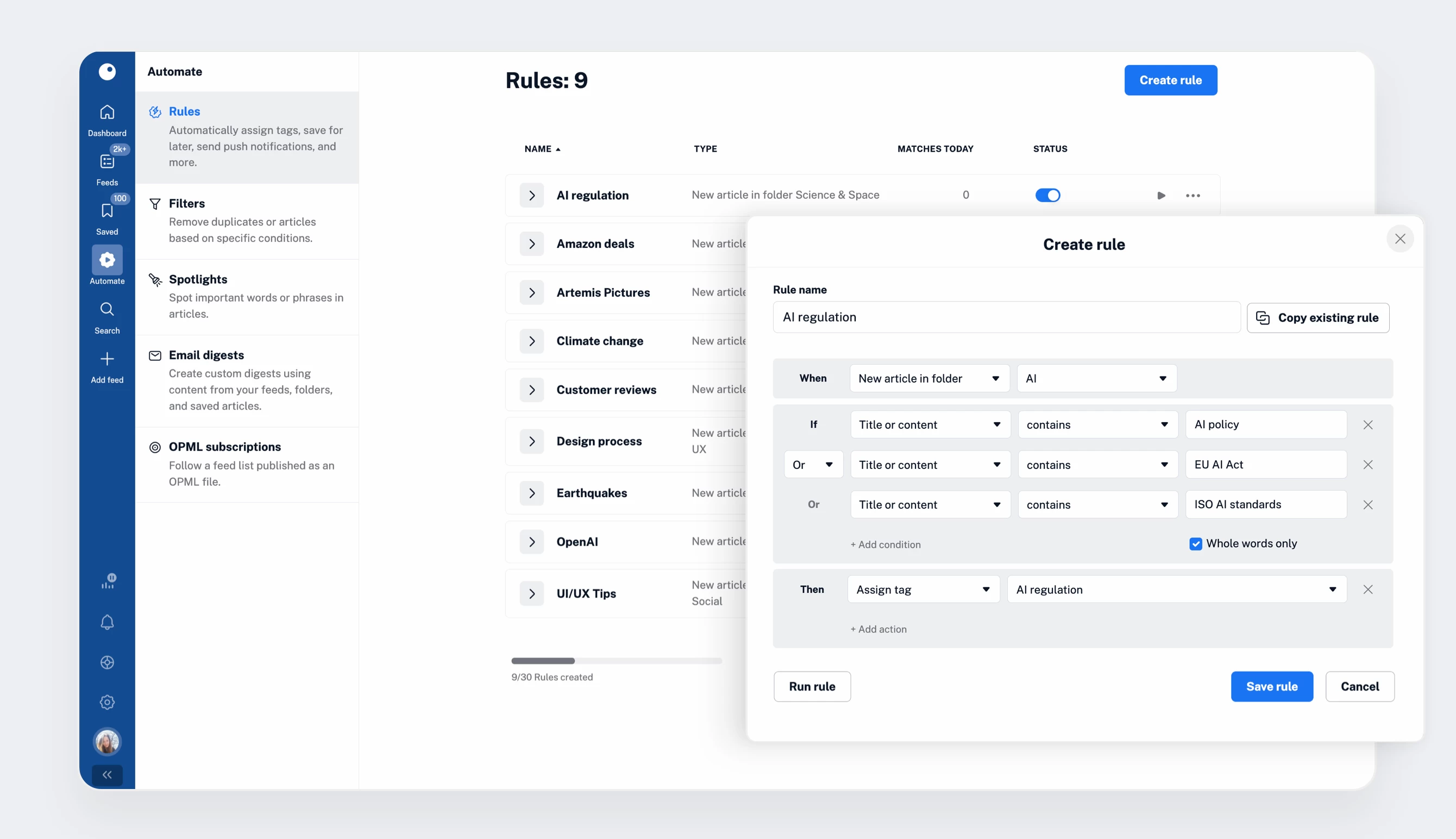
All your rules appear in the rules dashboard, where you can view daily matches, enable or disable rules, and edit or delete them as needed.
Pro users get 30 rules included with their plan. If you need more, you can add extra rules via a custom add-on. Your usage is always visible at the bottom of the rules dashboard.
Filters
Filters help you reduce noise by automatically hiding content that doesn’t meet your criteria as soon as it arrives. Instead of manually skimming through irrelevant articles, filters quietly clean up your feeds in the background. You’ll find them under Automate > Filters. Inoreader offers two types of filters: content filters and duplicate filters.
Content filters
Content filters allow you to keep or remove articles based on specific conditions such as keywords, phrases, authors, or other article properties.
To create one, click Create filter, choose Filter content, and select the feed or folder you want to filter. Then decide whether matching articles should be kept or removed.
You can filter by:
- Title and/or content
- Author
- URL
- Attachments, images, or videos
- Language
- RSS categories
As with rules, you can combine multiple conditions using AND / OR operators. You can also duplicate existing filters and adjust them slightly to save time when setting up similar logic.
Duplicate filters
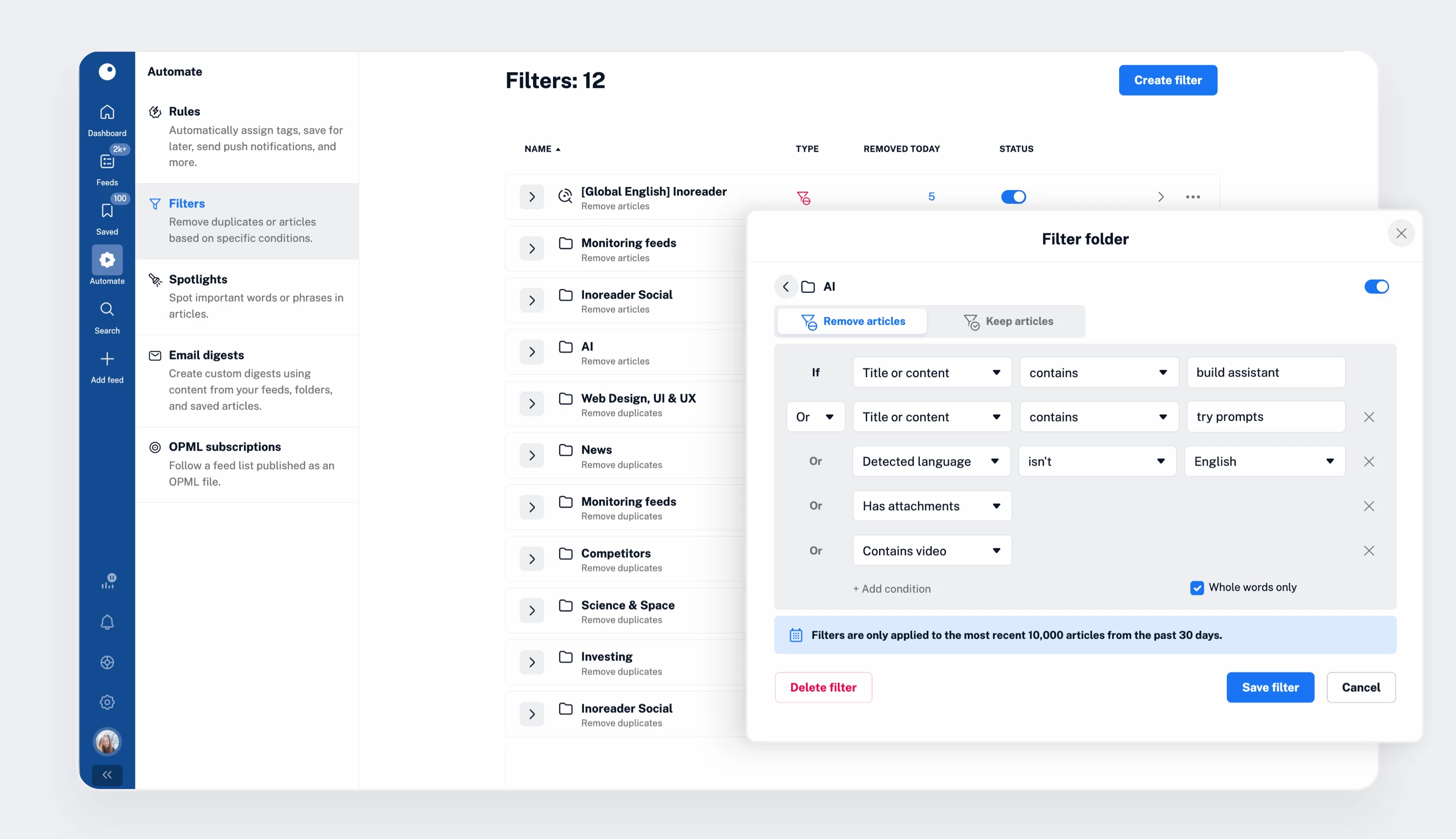
Duplicate filters automatically detect and remove repeating articles – especially useful when following multiple sources that publish the same or very similar content.
To create a duplicate filter, select the feed or folder where duplicates should be removed. Then choose how articles should be compared:
- Same URL
- Same title
- Nearly identical titles
(The most commonly used option is comparing URLs.)
Finally, choose the comparison period – from 6 hours up to 1 month – to control how far back Inoreader compares articles for similarity.
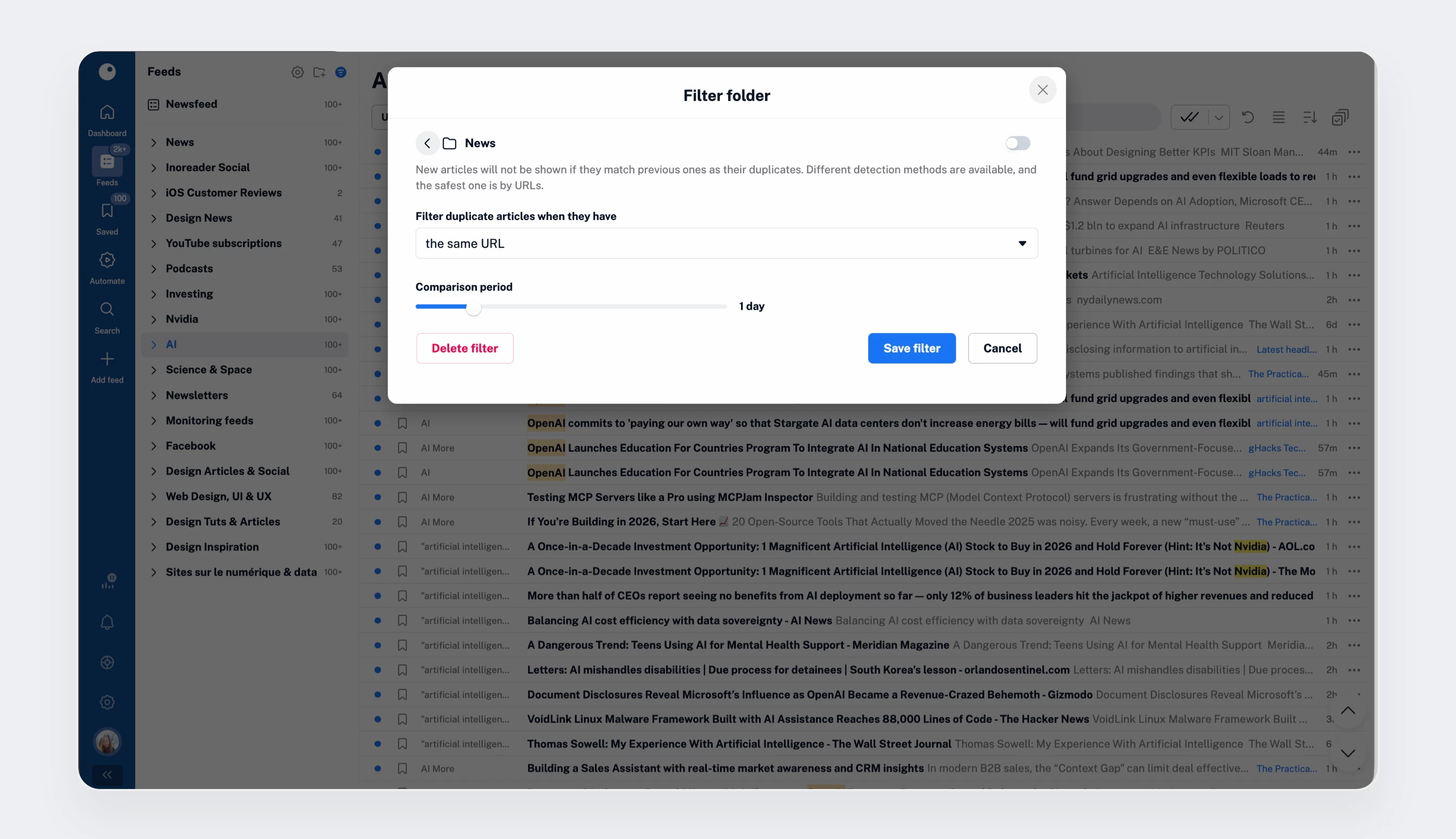
Once saved, both content and duplicate filters appear in a single filters dashboard. From there, you can see how many articles each filter removed today, enable or disable filters, and edit or delete them.
Pro users get 50 filters included with their plan. Just like rules, additional filters can be added via custom add-ons, and your usage is always shown at the bottom of the dashboard.
Bulk actions
Another way to save time in Inoreader is by applying actions to multiple articles at once.
You can enable bulk selection using Shift + click or the Bulk actions toolbar button, select ranges of articles, and apply actions to up to 50 items at a time.
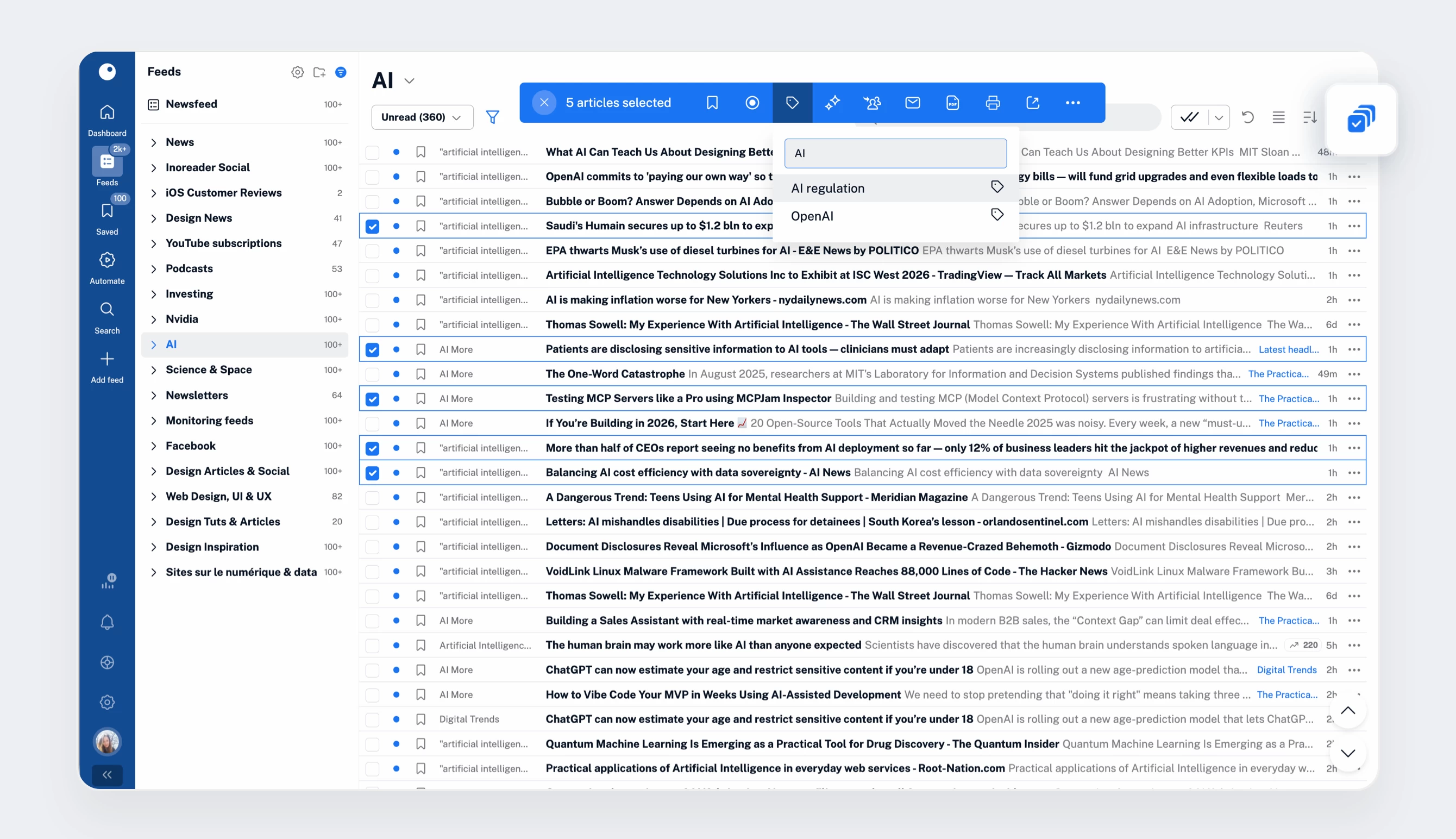
Bulk actions let you quickly:
- Save articles to Read later
- Mark articles as read
- Apply tags
- Send articles by email
- Export articles as PDF or CSV
- Print or open articles in separate tabs
It’s a simple feature that makes a big difference when dealing with high-volume feeds.
Focus on what matters
Automation is what turns Inoreader from a feed reader into a true information management system. With rules, filters, and bulk actions, Pro users can eliminate repetitive work, reduce noise, and ensure important content is surfaced and handled automatically.
In the next post of our Pro onboarding series, we’ll look at how to consume content your way – from article translations and listening with text-to-speech to offline mode and file uploads.