What are tags?
A tag is a label you put on an article you want to keep, whatever feed it came from. Your feeds and folders bring new articles in. A tag holds the ones you chose, so you can come back to them weeks later.
Tag an article
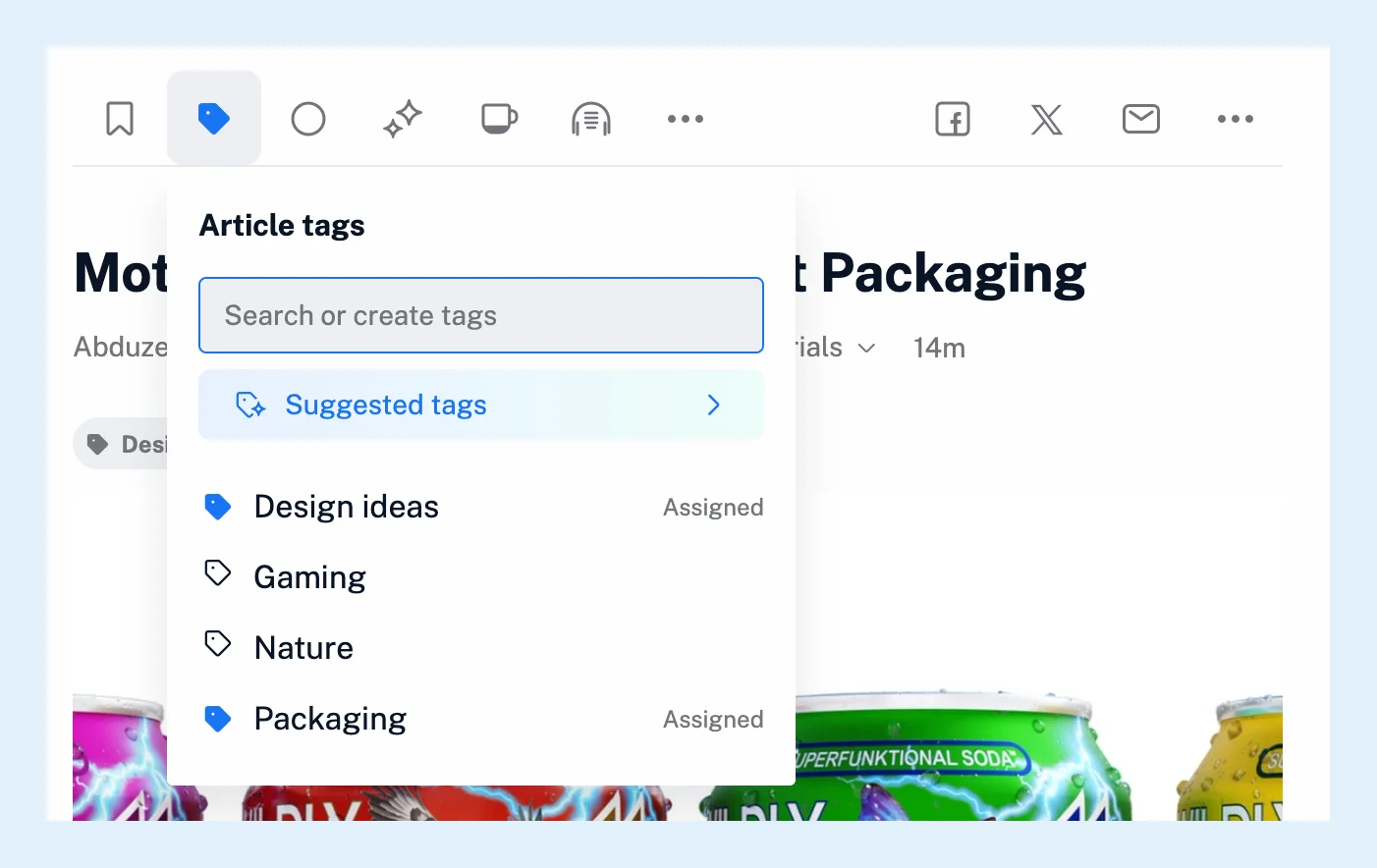
You tag an article by hand: click Add tags in the open article, or press T, and type the tag's name. The tags an article carries appear above its text, each with an x that removes it. An article can carry several tags, a tag can hold articles from any number of feeds, and a tagged article stays in the tag until you remove the tag from it.
Find your tags
Your tags are listed in the sidebar under Saved, below Read later, Archive and the other saved lists. Click a tag to read its articles, or All tagged articles to read everything you tagged in one list. See where to find your tagged articles. The Manage tags icon next to the Tags heading opens a page with every tag, its number of articles and the articles added today, where you rename, pin and delete tags.
Folders and tags
A folder groups feeds, and a tag groups articles. A folder and a tag can't share a name. See the difference between a folder and a tag, and the video shows tags in use.
Let Inoreader tag for you
With Pro, a rule tags new articles as they arrive: give it a keyword condition and the Assign tag action. Suggested tags, also Pro, offer tags that fit the article's text in the tag menu.
Publish and search a tag
A tag can become an output feed, an RSS or JSON feed or an HTML clip for your website, and a dashboard widget can list your recently tagged articles. You can search inside one tag from the Search page or from the search box above the tag's article list. On Team plans, Team tags are shared with the whole team.
Plans
Tags work on every plan. Inoreader warns you when a tag approaches 1,000 articles on Free or 10,000 on Pro. Rules, suggested tags, bulk tagging and output feeds are Pro features.
Can't find an answer? Contact support