How do I create an email digest?
Go to Automate > Email digests and click Create digest. Fill in the title and the subject, choose a template, pick a source and save, then set a schedule and add recipients. Nothing is sent until the digest has a schedule and a recipient who accepted the invitation.
A team digest is created the same way from the Team sidebar, where Create digest works for Team admins only.
Create the digest
- In the tab bar, click Automate, then Email digests.
- Click Create digest.
- Enter a Title and a Subject template. Click a placeholder to insert it: "{digest_name} from {issue_date}" gives "Weekly news from Jun 17, 2025".
- If you like, fill in From name, Send replies to and Description, and add a logo. Click Continue.
- Choose Simple and click Continue. Custom opens the layout editor instead, as Can email digest layouts be customized? describes.
- Pick the source type and the source, click Continue, check the preview and click Save digest.
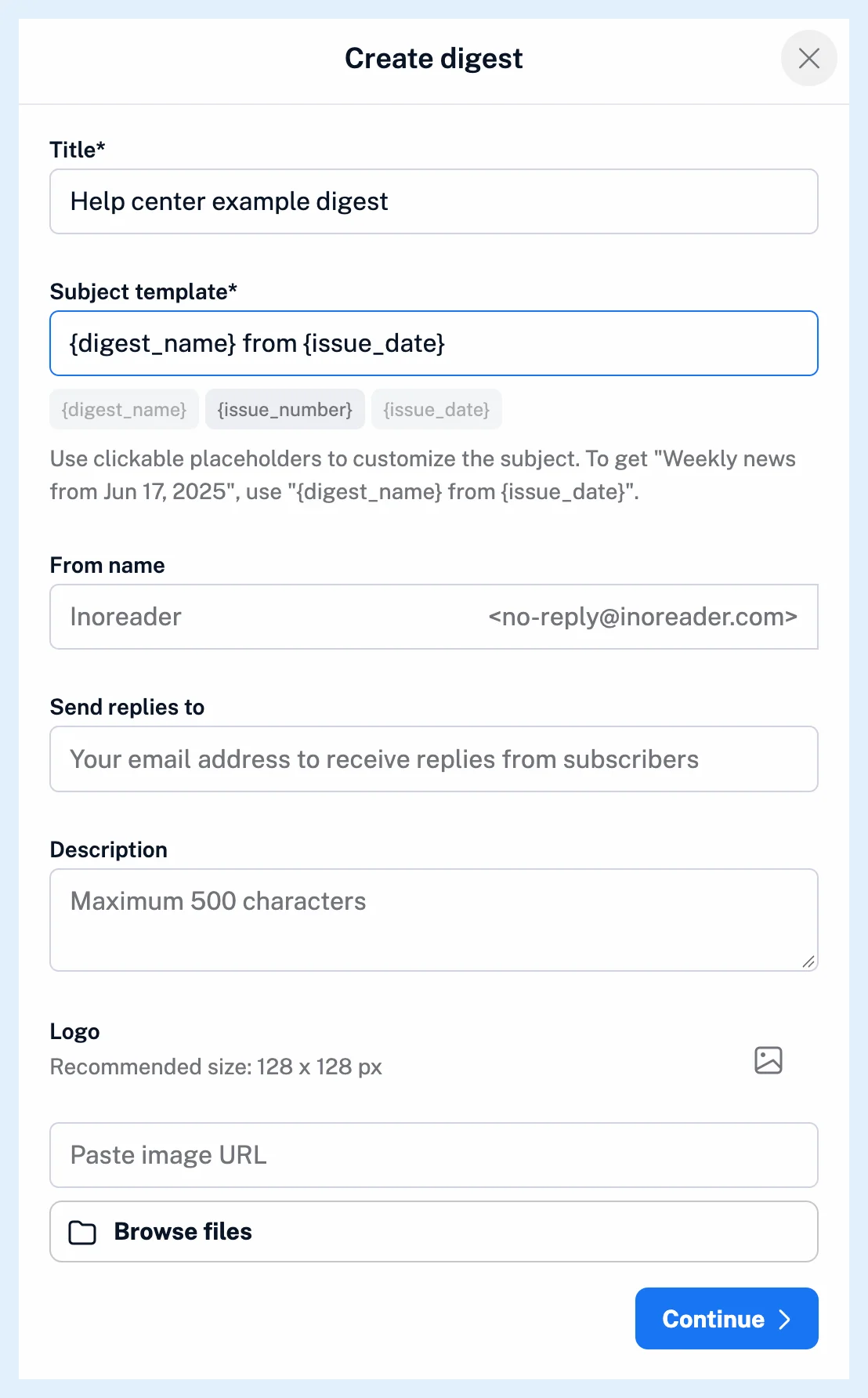
Issues come from [email protected] under the From name you set. A source can be a feed, a folder, a tag, a Saved list or a Team channel.
Set the schedule
After saving, Save draft keeps the digest for later and Schedule digest opens the schedule.
- Click Schedule digest.
- Under Repeat, choose Daily, Weekly, Biweekly, Monthly or Custom, and for Custom pick the weekdays under On.
- Choose the Send time.
- Under Reminder, choose Off, 30 min, 1 hour or 6 hours.
- Click Save schedule.
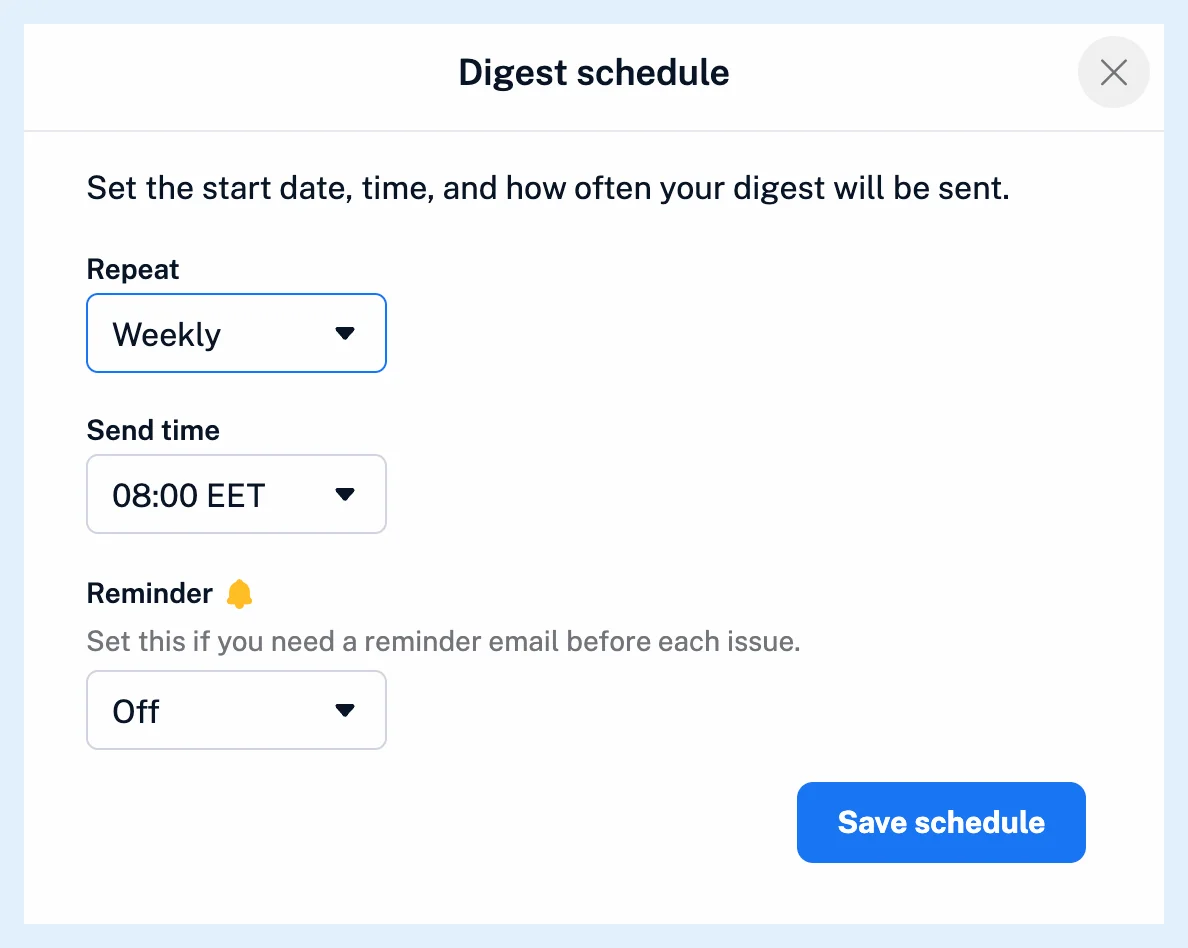
The schedule starts today, so a weekly digest repeats on today's weekday, and the send time follows the time zone in your Preferences. A reminder is an email to you with a Preview issue button, as Can I preview a digest issue before it is sent? explains.
Add recipients
- Open the ⋯ menu on the digest card and choose Manage recipients.
- Type an address under Email address and click Send invite.
- Click Save.
Each new address gets an invitation email when you click Save and receives issues once the person accepts it, as How do I start receiving a digest? describes. Your own address is subscribed automatically.
A digest without a schedule sends nothing: its card shows Schedule digest in place of the next issue until you set one.
The blog post Redesigned email digests for more control and flexibility shows the whole flow.
Plans
Email digests are included in every Team plan. Pro and Custom plans add them with the Email digests add-on, which brings 5 or 10 digests.
Can't find an answer? Contact support