What is Read later?
Read later is your reading list: the first section under Saved, holding every article you saved with the Read later icon or F, every web page you saved with Add, the browser extension, the bookmarklet or the share menu of the apps, and the articles a rule saved for you. Click Saved in the tab bar, or press G then F, and Read later opens first.
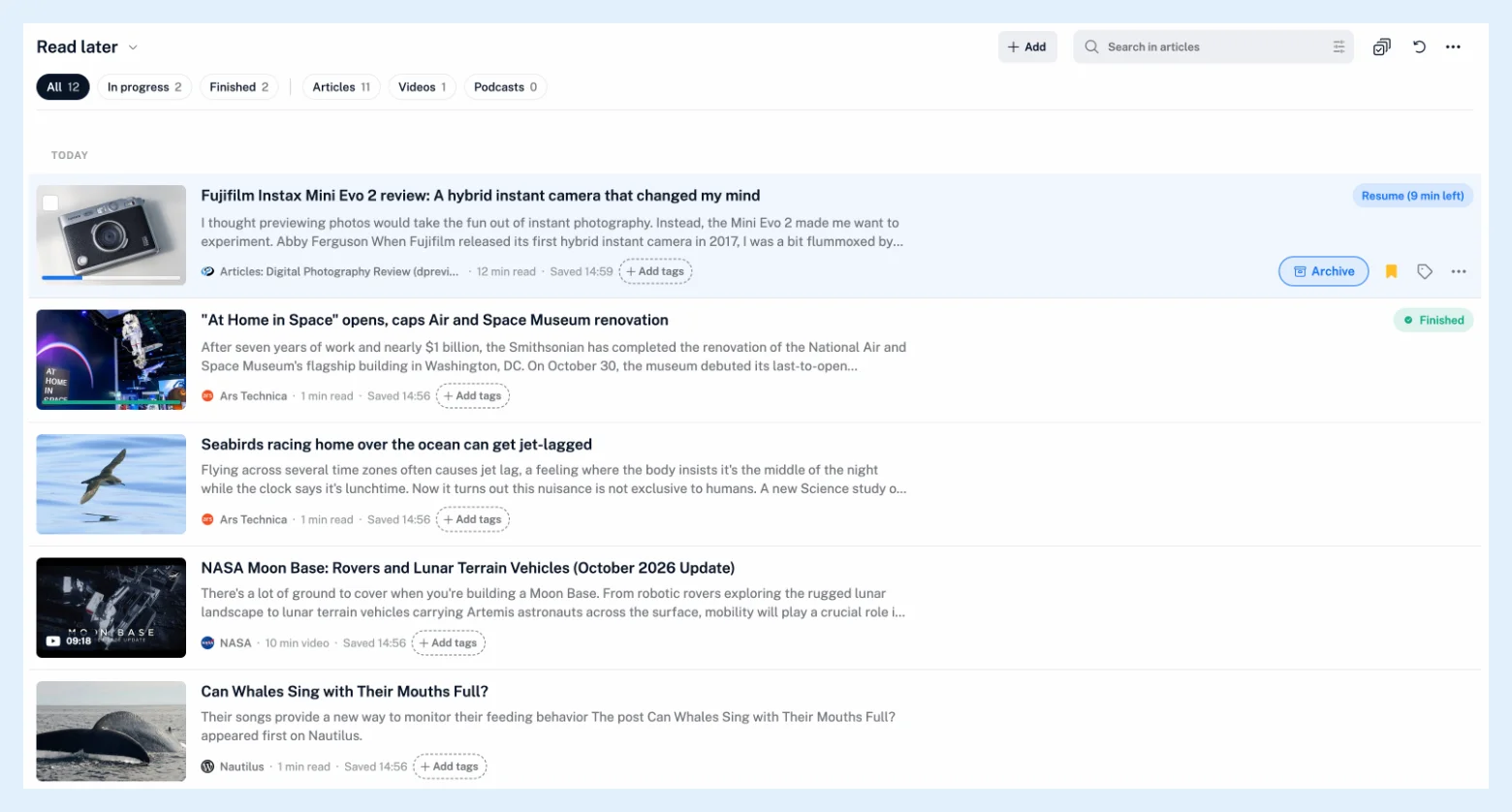
The Reading list
Read later opens in the Reading list layout: a row per item with its picture, title and a short snippet, then the feed's name, its length ("7 min read", "19 min video"), the date you saved it and its tags, grouped under Today, Yesterday, Earlier this week and the months before. A pill at the right end shows where you are: "Resume (27 min left)" while the article is in progress, "Finished" once you've read 95% or more, nothing for an item you haven't opened. Point at a row for Archive, the Read later icon, the tags button and the menu. Opening an article takes you straight back to where you stopped, as Can I continue reading where I left off? explains.
Filter with chips
The chips under the header are All, In progress, Finished, then Articles, Videos and Podcasts, each with its count. One chip from each group can be combined, for example In progress and Videos; click the active chip to turn it off. Videos are YouTube videos, Podcasts are items with an audio file, and Articles is everything else, saved web pages included.
The header and the More menu
Add saves a web page by its address, and the search box covers your newest 10,000 saved articles. The More menu, the three dots at the right end of the header, holds Layout (List, Expanded, Column, Card, Magazine and Reading list, remembered for Read later on its own), Sorting (by date saved, source, length or progress), Grouping (None, By feed, By date saved), Open original webpages, the Reading progress switch and Archive all. The arrow next to the title, or a right-click on Read later in the sidebar, offers Set as start page, Properties and Manage system folders.

Finish an article
Click Archive on the row, press E, or choose Archive article in the article menu: the row slides out to the Archive with its reading progress, and "Article archived" offers Undo for six seconds. When you reach the end of an article, "You finished this article." offers Archive and Keep in Read later, and the Archive when finished switch in the progress ring archives it by itself. Archive all in the More menu asks "Move 12 articles from Read later to Archive?" and moves the whole list. Nothing is deleted. With Pro, the checkbox on a row's picture starts multiple select, and the bulk bar offers Archive articles and Mark as finished.
Removing an article with the Read later icon or F takes it out of the list and deletes its reading progress. It keeps no copy in the Archive.
Plans
Read later is on every plan, as the feature page Save articles and read them when you have time says. Multiple select, rules and offline reading in the apps are Pro. Your saved list is the same in the Inoreader apps; the Archive, reading progress and the chips are on the web. See also the Saved section, how to save an article and the blog post Use Inoreader as your ultimate read-later app.
Can't find an answer? Contact support